
By default, when a Microsoft 365 Group (aka Unified Group) is created members of it will NOT get emails sent to it nor can external people email it. This is because the default is to not have these two boxes checked:
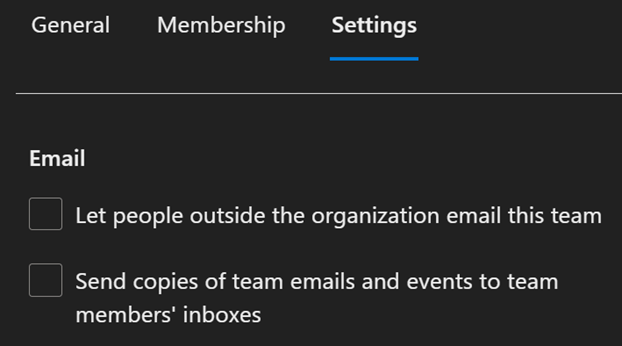
Once these boxes are checked, only NEW members will get emails though. This is because the Subscribe setting for a member of a unified group is only set when the person is added or if the person changes this setting.
The users can change this setting in Outlook desktop or
Outlook Web App in multiple ways, for OWA the new Groups portal can be accessed
at: https://outlook.office.com/groups/home
Let’s fix this issue via PowerShell, it cannot be done for users in the Admin Portal
1) Open up a PowerShell session and run Connect-ExchangeOnline
2) Now find all groups with the second option “Send copies of the team emails and events to team member’ inboxes” NOT set by running this cmdlet:
Get-UnifiedGroup | ? {$_.AutoSubscribeNewMembers -eq $false} | ft DisplayName, AutoSubscribeNewMembers, PrimarySmtpAddress
a) The Get-UnifiedGroup cmdlet, with these parameters, will:
Get all unified groups.
Check the value of AutoSubscribeNewMembers, which is the PowerShell attribute that the GUI reads and set, for each.
Create a table (ft) with the display name, this attributes value, and the primary SMTP address for each group.
3) To update a group, using Set-UnifiedGroup, to allow new members to get emails sent to it run:
Set-UnifiedGroup -Identity <Group SMTP address> -AutoSubscribeNewMembers:$true
Note: The “Let people outside the organization email this team” PowerShell attribute is RequireSenderAuthenticationEnabled. You can repeat the steps above replacing AutoSubscribeNewMembers with this attribute name to allow external people to email this group. Both of these can also be set using the https://admin.microsoft.com/#/groups portal also.
Now we need to subscribe each member to this group so in the future they get emails sent to it. This is much harder since you have to enumerate each member and then set the subscribe value on their identity in the group.
This can be done with this single complex cmdlet using Get-UnifiedGroupLinks
and Add-UnifiedGroupLinks, where <Group SMTP address> is the address of the group to enumerate and update all members of it:
Get-UnifiedGroupLinks <Group SMTP address> -LinkType Member | % {Add-UnifiedGroupLinks -Identity <Group SMTP address> -LinkType subscriber -Links $_.Guid.toString() -Confirm:$false}
Let’s break this down into a few cmdlets to better understand what is happening though.
1) Frist lets get a list of members of the group with this cmdlet:
Get-UnifiedGroupLinks <Group SMTP address> -LinkType members | %{$_.PrimarySmtpAddress}
This will get all “members” of the group and then list their primary email (SMTP) address.
Note: The “%” above is a shortcut to typing out “ForEach-Object.”
2) Next, we need to take the list of email addresses into a single text block\line that has each one comma separated. This can be done by copying from the PowerShell output and pasting it into Notepad. Then putting all the email addresses on a single line with a comma between them.
3) Once you have the list of user’s email addresses, we need to use the Add-UnifiedGroupLinks cmdlet to update Subscribers value to include them all for the group. This can be done with this cmdlet:
Add-UnifiedGroupLinks -Identity <Group SMTP address> -LinkType Subscribers -Links User1@company.com, User2@company.com, User1@company.com, External@somewhereelse.com
This cmdlet will set the internal users, @company.com, and any external\guest users to the be “subscribed” to group now.
If the group only contains a few dozen members the three
steps above can be used, but if it’s a large group the complex single cmdlet is
going to be much easier to use.

 Jason (Izzy) Sherry's Blog